 ANT
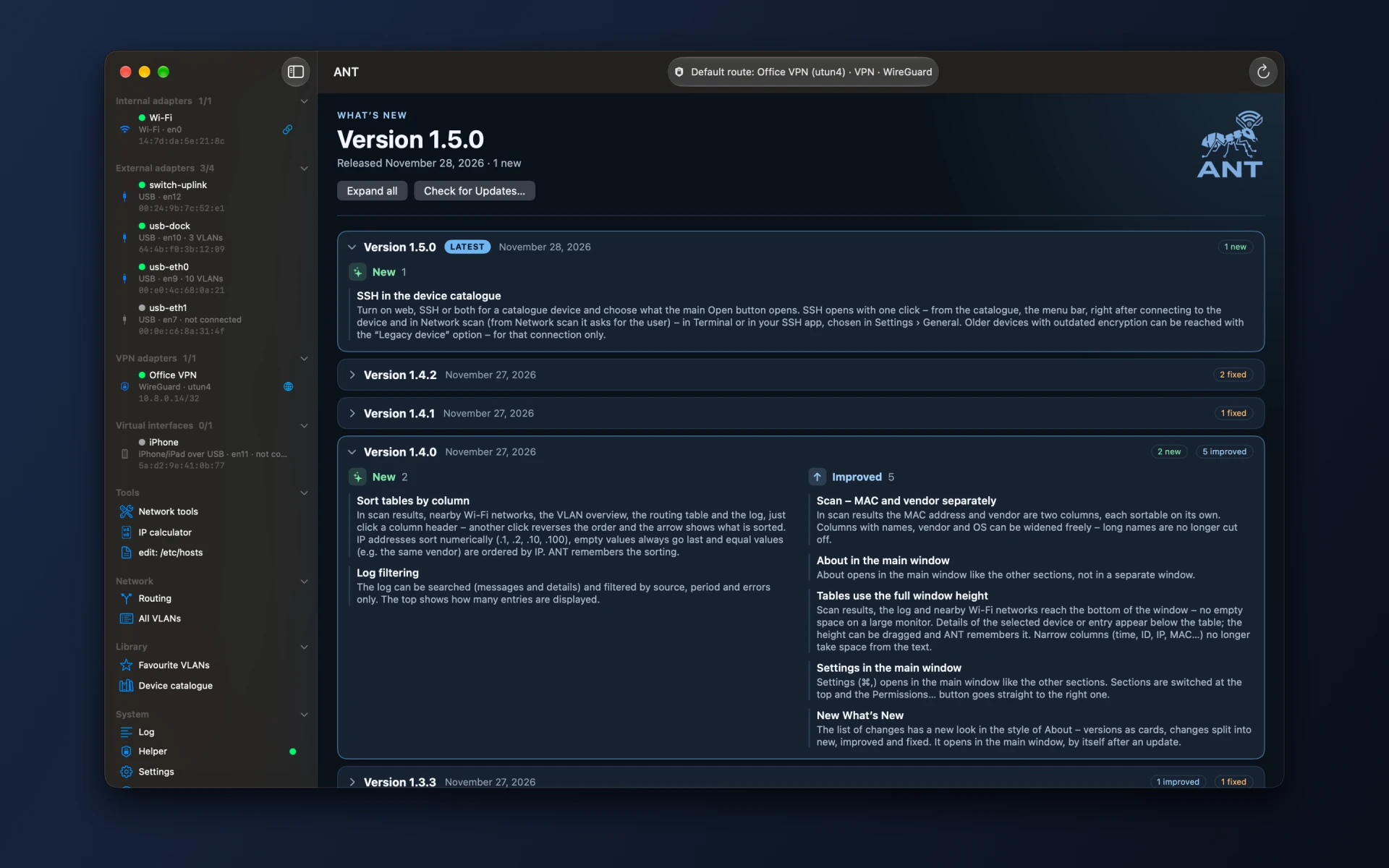
Version 1.5.0
New
SSH in the device catalogue
Turn on web, SSH or both for a catalogue device and choose what the main Open button opens. SSH opens with one click – from the catalogue, the menu bar, right after connecting to the device and in Network scan (from Network scan it asks for the user) – in Terminal or in your SSH app, chosen in Settings › General. Older devices with outdated encryption can be reached with the “Legacy device” option – for that connection only.
Version 1.4.2
Fixed
Crash on the Wi-Fi page
ANT could crash while the Wi-Fi page was open on a display with a higher refresh rate (e.g. the built-in MacBook Pro display) or when moving the window between monitors. Fixed.
Tables without a horizontal scroll bar
Table columns always adapt to the window width – all of them are visible even on a 13" MacBook (Open ports in the scan, Seen in Wi-Fi) and no horizontal scroll bar appears below the table. Column widths from a large monitor are no longer carried over to a smaller window.
Version 1.4.1
Fixed
Tool results are no longer lost
Results of the network scan, advanced scan, traceroute, DNS, whois and TCP console stay when you look elsewhere and come back. A running scan or traceroute continues, an open TCP connection stays open and unsaved /etc/hosts edits are kept. After ANT restarts, the tools are empty.
Version 1.4.0
New
Sort tables by column
In scan results, nearby Wi-Fi networks, the VLAN overview, the routing table and the log, just click a column header – another click reverses the order and the arrow shows what is sorted. IP addresses sort numerically (.1, .2, .10, .100), empty values always go last and equal values (e.g. the same vendor) are ordered by IP. ANT remembers the sorting.
Log filtering
The log can be searched (messages and details) and filtered by source, period and errors only. The top shows how many entries are displayed.
Improved
Scan – MAC and vendor separately
In scan results the MAC address and vendor are two columns, each sortable on its own. Columns with names, vendor and OS can be widened freely – long names are no longer cut off.
About in the main window
About opens in the main window like the other sections, not in a separate window.
Tables use the full window height
Scan results, the log and nearby Wi-Fi networks reach the bottom of the window – no empty space on a large monitor. Details of the selected device or entry appear below the table; the height can be dragged and ANT remembers it. Narrow columns (time, ID, IP, MAC…) no longer take space from the text.
Settings in the main window
Settings (⌘,) opens in the main window like the other sections. Sections are switched at the top and the Permissions… button goes straight to the right one.
New What’s New
The list of changes has a new look in the style of About – versions as cards, changes split into new, improved and fixed. It opens in the main window, by itself after an update.
Version 1.3.3
Improved
Explanation of a closed connection
When a server closes the connection in the TCP console without replying, the console explains the likely reason.
Fixed
TCP console – HTTP and HTTPS scenarios
The HTTP (80) and HTTPS (443) scenarios send the whole request at once, so the server replies. Previously they sent it line by line and the server closed the connection after a few seconds with “Connection reset by peer”. The Host header includes the port when it is not the default.
Version 1.3.2
Improved
Prompts only with a working helper
Prompts to clean up VLANs without an adapter, restore a session after connecting an adapter and turn off DHCP appear only once the helper is running – without it they could not be carried out. After the helper is installed they appear by themselves, with up-to-date content.
Fixed
Removing VLANs without a connected adapter
The Remove selected / Remove all buttons in the dialog about VLANs without an adapter (including ones left in macOS outside ANT) no longer look like they do nothing. If the helper is missing, the dialog says so and offers Permissions…; any error is shown in the dialog.
DHCP prompt is not lost
If turning off DHCP in the dialog fails (e.g. the helper is missing), the dialog stays open with an explanation and the services are not marked as handled.
Version 1.3.1
Improved
App window fits your display
On first launch and on a new monitor setup the main window adapts to the display size and opens centred. If you move or resize it, ANT remembers that for the monitor setup.
About fits on screen
The About window is shown in full even on a smaller display (e.g. a 14" MacBook) – no scrolling.
Fixed
IP calculator – address on my interface
The “Is the address in the network?” check showed garbled text instead of the address of your own interface, e.g. 192.168.1.240/24.
Version 1.3.0
New
License and trial
You can try ANT free for 3 days, even without an internet connection. After that, just enter the license key from your purchase email. A license covers 2 Macs and all 1.x versions. Everything is in Settings › License: who ANT is licensed to, deactivating this Mac (frees a slot for another one) and offline activation with a code or QR code for Macs without internet.
Uninstall
When the trial ends, ANT also offers a complete uninstall: it removes the helper, deletes the app and helper data and moves ANT to the Trash.
Improved
About window
The new name Advanced Network Toolkit, current contacts and a feature overview matching www.anttoolkit.com. Bug reports and feature requests now go to support@anttoolkit.com.
Version 1.2.0
New
App updates
Once a day ANT checks whether a newer version is available and offers it together with a list of changes. Download, installation and relaunch happen by themselves. Any time by hand: the ANT menu or right-click the menu bar icon › Check for Updates…
Version 1.1.1
Fixed
Thousands separator in the IP calculator
Large numbers are grouped by the app language: “1,024” in English, “1 024” in Czech (the English version used a space before).
Version 1.1.0
New
What’s new
A list of changes in every version. It opens once by itself after an update; any time later it is in the sidebar (System) and in the ANT menu.
Bonjour and NetBIOS names in scans
Two new columns with the names devices announce themselves – even where reverse DNS returns nothing. Also in the device detail and the CSV export.
Private Wi-Fi address
The Wi-Fi detail lists the hardware MAC and the private MAC the Mac uses on that network – the one the router and DHCP see.
IP calculator for IPv4 and IPv6
A separate tool in the sidebar with an IPv4 / IPv6 switch. Empty fields show a grey example with its result; typing an address of the other family switches automatically. Values are remembered separately and “My networks” also offers the interfaces’ IPv6 networks.
Settings in the sidebar
The Settings… item in the System section opens settings (same as ⌘,).
Improved
Main window
Fits the display on first launch. It remembers its position and size separately for each monitor setup (e.g. MacBook only / MacBook with an office monitor) and moves to its place when a monitor is connected or disconnected. About, What’s new and Settings open next to the main window.
Sidebar
New order (internal, external, VPN, virtual, tools, network), editing /etc/hosts is under Tools; every section collapses with an arrow and adapter sections show how many are online. System now also has About.
Tool bars follow the window width
Controls wrap onto another line in a narrower window instead of being cut off, and the tool tabs turn into a menu.
Advanced scan
Scan status and a Go to results button at the top right; the target and options stay visible.
Whois
The registry answer (e.g. nic.cz) is on top; the IANA response is collapsed and opens with the arrow.
MTU probe
The target is prefilled with the VLAN gateway and the result explains why a lower MTU is needed and which value to set.
Helper window
Clearly split into Status (app and helper versions), What the helper does and DHCP protection with a plain explanation. Versions are written without brackets: “Version: 1.1.0, build: 195”.
Menu bar menu
The “Open window” button is now “Open ANT”; the Refresh button explains what it does.
Adapter icons
The interface carrying a VPN shows a link icon instead of a shield. Hovering over the icon on the right shows a detailed explanation.
About
New layout (name on the left, logo on the right, contact buttons next to the author, only the copyright at the bottom), new texts and six app areas including Wi-Fi, VPN and network scan. The window opens on the display with the main window.
Tables
No alternating stripes, which were also drawn below the last row like empty rows. An empty table says why it is empty.
Wi-Fi scan
While the Wi-Fi detail is open it scans continuously (like WiFi Explorer) and finds all nearby networks including hidden ones. The Stop / Scan button pauses and resumes scanning. The Seen column shows when a network was last heard; a network silent for 30 s disappears.
Fixed
Form error messages
When Create or Save is disabled, the form now shows why.
MTU probe errors
Shown right in the dialog with the real reason (e.g. the adapter has no link), not later in the main window.
Network scan progress
The percentage and the number of online devices update during the scan.
Numbers without separators
VLAN IDs and ports show as 3998 and 8008, not 3,998.
VPN tunnels
A tunnel without a gateway (WireGuard) shows “— (tunnel)” instead of its own address; Routing names the VPN.
Texts and names
The VLAN dialog names the real default route; the interface list no longer says “Wi-Fi: Wi-Fi”; the Log has no entries from automated tests.
App language
Dates, the Log and DNS answer sections follow the app language (Czech used to remain in the English version). Log entries are stored in both languages.